TL;DR
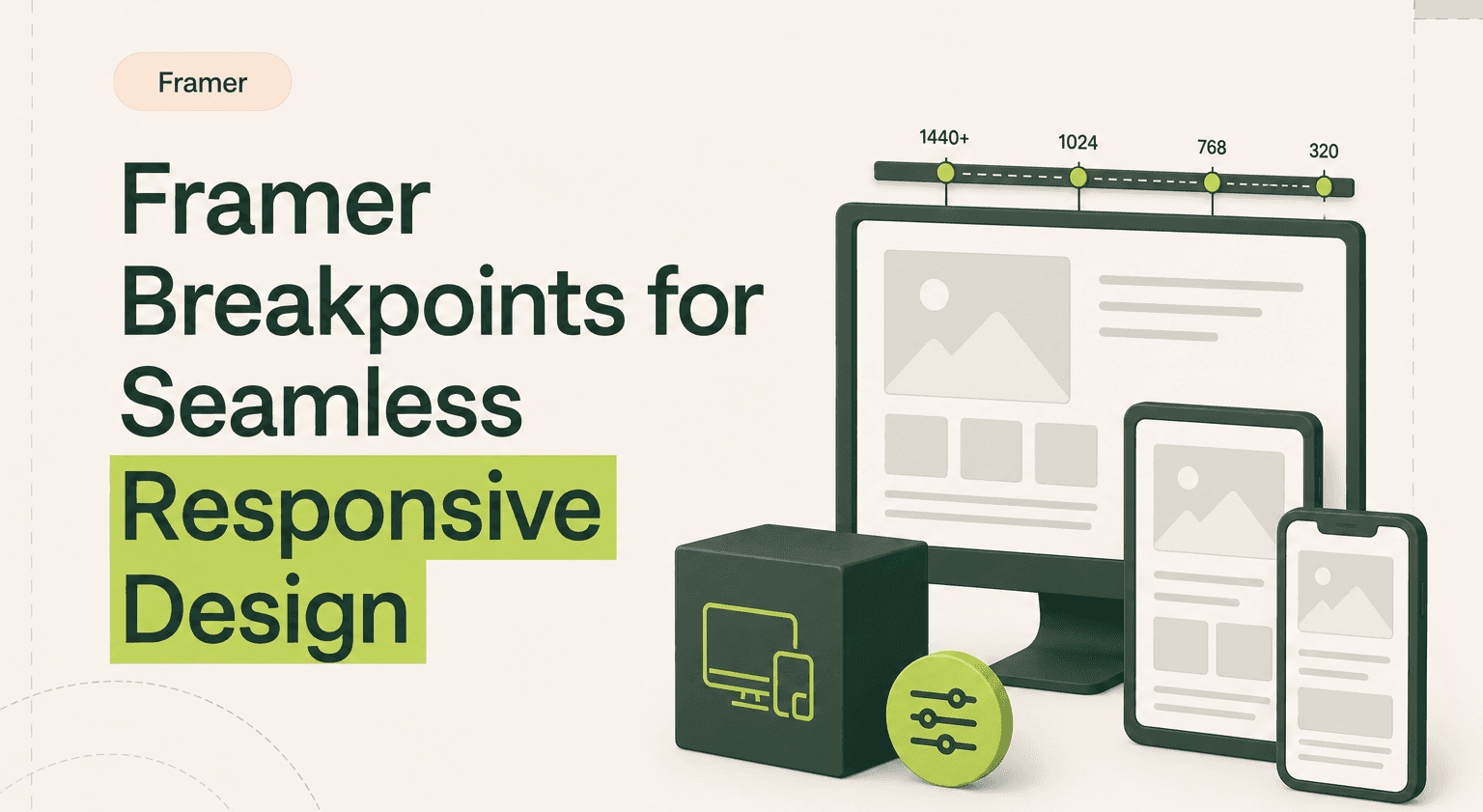
Framer uses a desktop-first approach with 1200px as the default breakpoint. Changes cascade down to smaller screens unless overridden.
Breakpoint inheritance saves time by automatically applying larger-screen settings to smaller views. Override only when a specific element needs to behave differently on a smaller screen.
Use percentage-based widths, auto-sizing, and stacks instead of fixed pixel values to avoid scaling issues across breakpoints.
Keep overrides minimal. Excessive overrides slow performance and make debugging harder.
Test across real devices, not just Framer's preview mode. Chrome DevTools and Responsively App catch issues that preview mode misses.
For mobile-heavy audiences, consider a mobile-first approach. For complex dashboards or portfolio sites, desktop-first gives you more control.
Understanding Breakpoints in Framer
When designing for multiple screen sizes, you need a system that ensures content adapts seamlessly. Breakpoints define how your layout behaves at different screen widths, keeping your design usable and visually consistent across devices.
What Are Breakpoints?
Breakpoints are predefined width thresholds that trigger layout changes in Framer. As the screen size shrinks or expands, the design adjusts accordingly, ensuring elements are properly spaced, readable, and interactive.
For example, a desktop layout with multi-column content might collapse into a single-column format on mobile. Without breakpoints, elements can overlap, become unreadable, or disrupt usability. Since mobile traffic now represents over 60% of all web browsing, getting breakpoints right directly affects how most of your visitors experience your site.
If you want to learn Framer from the ground up, understanding breakpoints is one of the most important fundamentals to nail early.
The Primary Breakpoint: Desktop-First Approach
Framer adopts a desktop-first approach, meaning that the 1200px breakpoint serves as the default design width. From there, changes cascade down to smaller breakpoints like tablets and mobile screens.
Why does this approach work?
Greater control over complex layouts. Desktop designs often have more intricate structures, requiring careful arrangement before scaling down.
Easier scalability. Adjusting from large to small ensures fewer layout distortions, making it easier to structure a responsive layout that adapts across breakpoints.
Performance efficiency. Fewer overrides are needed since changes are inherited naturally from the larger breakpoint.
However, some projects may benefit from a mobile-first approach, especially content-heavy platforms or apps that prioritize mobile users. We cover how to choose the right approach in Section 4.
Choosing the right Framer template ensures your breakpoints align seamlessly with your design structure from the start.
Breakpoint Inheritance and Overrides
Framer's breakpoint system relies on inheritance, meaning changes made at a larger breakpoint automatically apply to smaller screens unless overridden. Understanding how to use inheritance effectively and when to override is key to a smooth workflow.
How Inheritance Works in Framer
Every new breakpoint starts by inheriting settings from the larger screen size. This prevents designers from manually adjusting every layout variation, saving time and ensuring consistency.
For example, if you change the primary button colour at 1200px, that update will carry over to the tablet and mobile views unless explicitly modified. This hierarchical approach simplifies maintenance and reduces unnecessary overrides.
Using Overrides to Customize Layouts
While inheritance maintains consistency, sometimes you need breakpoint overrides to modify specific elements for smaller screens. Overrides let you tweak properties like typography, spacing, and element positioning without affecting the desktop version.
When should you use overrides?
Text scaling. Reduce heading sizes on smaller screens for readability.
Spacing adjustments. Tighten margins and paddings for compact layouts.
Component resizing. Ensure images and buttons remain proportionate.
However, excessive overrides can reduce performance and complicate debugging. One of the biggest mistakes designers make is overriding every breakpoint individually, leading to inconsistencies. Keeping overrides to a minimum ensures a faster, more reliable design.
For more on customizing layouts efficiently, check out our guide on customizing Framer templates.
Resetting and Updating Breakpoints
Occasionally, you may need to reset or update breakpoints to refine your layout structure. Here is how to do it efficiently:
Evaluate breakpoints regularly. Check if your existing breakpoints align with design needs and user behavior.
Remove unnecessary overrides. Too many overrides slow down performance and make debugging harder.
Use consistent sizing variables. Ensuring uniform spacing and typography prevents layout inconsistencies across screen sizes.
By maintaining a well-structured inheritance system, you create a design that is both flexible and scalable, allowing seamless adjustments as new devices emerge.
Evaluating whether to build new, migrate, or scale what you have? Book a free consultation. We will give you an honest recommendation in one call.
Book a free consulting call with Goodspeed
Common Breakpoint Issues and How to Fix Them
Even with a well-structured design, breakpoint-related issues can arise. Identifying and resolving them early prevents poor user experiences and maintains design consistency.
Elements Not Scaling Properly
A common challenge is fixed-width elements that fail to resize across breakpoints. This can lead to content appearing cut off, misaligned, or awkwardly spaced on smaller screens.
How to fix it:
Use percentage-based widths instead of fixed pixel values to allow flexibility. Enable auto-sizing so elements adjust dynamically to different screen sizes. Leverage Framer's constraints feature to keep elements proportionate.
Proper auto-sizing techniques play a key role in optimizing Framer templates for better performance.
Misalignment and Overlapping Elements
Another frequent issue is misaligned content or elements overlapping when breakpoints shift. This typically happens when layouts rely on manual positioning instead of structured design techniques.
How to fix it:
Use stacks. Framer's stacks automatically distribute spacing and prevent elements from colliding. Adjust constraints to ensure elements are anchored correctly for each breakpoint. Enable auto-layout properties to keep spacing consistent, especially when resizing text, images, or buttons.
If you are running into persistent layout issues, our guide on troubleshooting common Framer performance issues covers deeper debugging techniques.
Content Overflow and Hidden Sections
Have you ever switched to mobile view only to find sections missing or text overflowing beyond the viewport? This often occurs due to improper frame wrapping or hidden overflow settings.
How to fix it:
Adjust padding and margins to ensure all elements stay within the viewport. Use Framer's clipping and masking features to control overflowing content. Check that sections are not set to "hidden" in smaller breakpoints unless intentional.
For a complete walkthrough on building responsive sites without writing code, see our guide on how to use Framer to build a responsive website.
Mobile-First vs. Desktop-First Approach
Choosing between a mobile-first or desktop-first approach depends on your project needs. Each has distinct advantages, and the right choice depends on your audience and content type.
When to Use a Mobile-First Approach
A mobile-first approach means designing for smaller screens first before scaling up to desktop. This is ideal for:
Mobile-heavy applications where most traffic comes from smartphones.
Content-driven websites like blogs, news platforms, or social apps.
Performance-focused designs that prioritize speed and lightweight assets.
Since 53% of mobile users abandon sites that take longer than 3 seconds to load, designing for mobile-first ensures that performance remains optimal from the start.
Desktop-First: Why It Works Well in Framer
Framer naturally follows a desktop-first approach, making it easier to design complex, structured layouts before adjusting for smaller screens.
This approach is best for:
Web applications with multiple layers of content.
Dashboard-heavy interfaces requiring more screen space.
Portfolio or agency websites where visuals are key.
By starting large and scaling down, designers retain greater control over layout hierarchy and avoid excessive breakpoint adjustments.
Choosing the Right Approach for Your Project
Which approach is best depends on your project type and audience.
If your site's primary audience is mobile users, a mobile-first design is best. If your site has intricate layouts with multiple elements, a desktop-first approach offers more control. For balanced projects, start with desktop but keep mobile performance in mind from the outset.
If you are unsure which approach best fits your goals, consult a professional Framer agency like Goodspeed to develop a scalable layout strategy. Understanding Framer pricing can also help you plan your project budget before committing to a build approach.
Want this done right the first time? Our team has shipped 300+ projects. Book a free consultation and get clarity in one call.
Book a free consulting call with Goodspeed
Best Practices for Consistent Responsive Design
Mastering breakpoints requires a systematic approach. Follow these best practices to ensure a well-structured, flexible layout.
Using Design Variables for Consistency
Design variables allow you to maintain uniformity across all breakpoints, ensuring that typography, spacing, and colours stay consistent.
Best practices:
Use global typography styles to prevent size mismatches.
Set scalable spacing variables to create harmonious layouts.
Apply consistent colour schemes to avoid visual discrepancies.
This approach not only saves time but also prevents the need for excessive breakpoint overrides, which can slow down performance.
Auto-Sizing vs. Fixed Width Elements
Choosing between auto-sizing and fixed-width elements significantly impacts how your design behaves across breakpoints.
Auto-sizing advantages:
Flexible layouts: Elements adapt dynamically based on content.
Improved mobile responsiveness: Ensures no content gets cut off.
Fixed-width limitations:
Can cause content overflow on smaller screens.
Requires more manual adjustments for responsiveness.
By prioritizing auto-sizing for fluid elements and using fixed widths only when necessary, you can create a balanced, adaptive layout.
Managing Layouts with Stacks
Framer’s stacks help maintain a clean, responsive layout by controlling spacing and alignment across different breakpoints.
Best practices for stacks:
Use vertical stacks for mobile to prevent layout shifts.
Group elements logically to maintain structural integrity.
Adjust stack padding dynamically based on breakpoint requirements.
Book a free consulting call with Goodspeed
Performance Considerations for Framer Breakpoints
A well-structured design means nothing if it doesn’t load quickly. Optimizing your breakpoints for speed ensures that users experience a seamless, high-performing website.
Avoiding Excessive Overrides
Breakpoints in Framer allow inheritance, but excessive breakpoint overrides can slow down performance and create inconsistencies. Each override adds complexity, forcing the browser to process additional layout rules. When combined with other best practices like lazy loading in Framer, you can significantly improve site performance.
How to avoid unnecessary overrides:
Use global styles and design variables instead of tweaking each breakpoint manually.
Minimize per-breakpoint typography changes-set scalable font sizes from the start.
Keep layout adjustments minimal to avoid heavy recalculations during rendering.
For performance-focused projects, our Framer speed optimization services can help reduce load time and boost UX across breakpoints.
Testing Across Devices & Viewports
Even a well-structured design can have unexpected behavior on different screens. Instead of relying solely on Framer’s preview mode, test across multiple devices.
Best tools for testing breakpoints:
Framer Preview Mode – Simulate breakpoints within the Framer interface.
Chrome DevTools – Emulate different screen sizes and inspect responsiveness.
Responsively App – Compare multiple breakpoints side by side.
By rigorously testing and fine-tuning layouts, you can ensure that Framer breakpoints perform optimally across devices. If performance is a priority, explore our complete guide to speed optimization in Framer.
Fine-Tuning Breakpoints for the Best UX
Beyond technical accuracy, responsive design should enhance the user experience. Small tweaks to breakpoints can improve readability, interaction, and accessibility.
Adjusting Widths for Better Readability
A well-balanced layout improves readability and prevents users from experiencing eye strain or frustration. If text blocks stretch too wide on desktops or become cramped on mobile, readability suffers.
Best practices for typography and widths:
Limit text width to 75–90 characters per line for easier readability.
Use max-width constraints to prevent excessive stretching on large screens.
Adjust font sizes per breakpoint while maintaining a consistent scale.
Enhancing User Experience with Adaptive Design
Responsive design in Framer should do more than resize elements-it should improve user interactions. On mobile, touch targets need to be larger and more accessible, while on desktop, interactions should feel intuitive and responsive.
Key UX optimisations per breakpoint:
Increase button sizes and tap areas for mobile users.
Adjust spacing around interactive elements to avoid accidental clicks.
Ensure navigation menus adapt smoothly across breakpoints.
For better visibility in search engines, make sure you’re also following SEO best practices when using Framer templates.
Build With Confidence
Responsive design in Framer is more than adjusting layouts. It is about creating an adaptive, high-performance experience for every user. By understanding inheritance and overrides, avoiding common breakpoint issues, and following best practices for speed and UX, you can build a scalable, future-proof website that works on every screen.
Goodspeed is a top-rated Framer agency with a team of senior developers who have shipped 300+ projects, earning a 5.0 Clutch rating and back-to-back Bubble Agency of the Year recognition. Whether you need a new Framer site, a migration from another platform, or performance optimization on an existing build, our team delivers.
Browse our case studies to see what we have shipped. Start with a Signal Sprint to map your project before committing. Or book a free consultation for an honest conversation about what you are building and whether we are the right team to build it.

Harish Malhi
Founder of Goodspeed
Harish Malhi is the founder of Goodspeed, one of the top-rated Bubble agencies globally and winner of Bubble’s Agency of the Year award in 2024. He left Google to launch his first app, Diaspo, built entirely on Bubble, which gained press coverage from the BBC, ITV and more. Since then, he has helped ship over 300 products using Bubble, Framer, n8n and more - from internal tools to full-scale SaaS platforms. Harish now leads a team that helps founders and operators replace clunky workflows with fast, flexible software without writing a line of code.
Frequently Asked Questions (FAQs)
What are breakpoints in Framer and why do they matter?
Breakpoints are width thresholds that trigger layout changes as screen size changes. They keep your design readable and functional across desktops, tablets, and phones, which matters since over 60% of web traffic is mobile.
What is Framer's default breakpoint approach?
Framer uses desktop-first with 1200px as the default. Changes cascade down to smaller screens automatically through inheritance, reducing the need for manual adjustments at each breakpoint.
How does breakpoint inheritance work?
Every smaller breakpoint inherits settings from the larger one above it. If you change a button colour at 1200px, it carries to tablet and mobile unless you explicitly override it at that breakpoint.
How do I fix elements that do not scale properly?
Use percentage-based widths instead of fixed pixels, enable auto-sizing for dynamic adjustment, and leverage Framer's constraints feature. This prevents content from getting cut off or misaligned on smaller screens.
Should I use mobile-first or desktop-first in Framer?
Desktop-first works best for complex layouts, dashboards, and portfolio sites. Mobile-first suits content-driven sites and apps where most traffic comes from phones. For balanced projects, start desktop but prioritize mobile performance.
Can too many breakpoints slow down my Framer project?
Yes. Excessive breakpoints and overrides force the browser to process more layout rules, which degrades performance. Use minimal, well-structured breakpoints (desktop, tablet, mobile) with global styles to reduce manual tweaks.
What tools help test Framer breakpoints?
Framer Preview Mode simulates breakpoints in the editor. Chrome DevTools emulates screen sizes and inspects responsiveness. Responsively App lets you compare multiple breakpoints side by side for faster QA.
How do I ensure consistent design across all breakpoints?
Use global typography styles, scalable spacing variables, and consistent colour schemes. Prioritize auto-sizing over fixed widths. Use stacks to control spacing and alignment. Test on real devices, not just preview mode.